HDMI Cables Not Doing Their Job

Fraurrix

Thread Junky
Joined
May 17, 2011
Messages
897
I originally had my PC hooked up to a 32" Sony TV through a DVI to PCI cable and my max resolution was 1360 x 768. Obviously this is a pretty low resolution for a 32" screen so I decided to pick up an HDMI cable and a DVI to HDMI adapter for my PC.

Despite being able to display at a higher resolution, everything now looks like garbage when I go beyond the recommended 1360 x 768 resolution.

I'm using the GeForce GTX 560 which supports HDMI.

What's going on here?
 
It doesn't even improve video quality. This cable does absolutely nothing for me.
 
Just a guess: Have you updated your drivers?

Yessir.

I'm starting to get the impression that HDMI cables are pointless for anything under 1080p. I've been switching back and forth between the HDMI and PCI inputs and have noticed zero difference.

Using the PCI cable still looks pretty good though. I just thought an HDMI cable would make everything even fancier.

What confuses me though, is despite the 1360 x 768 resolution on a 32" TV, it still looks better than a 1680 x 1050 resolution on my 22" monitor. I'm probably missing something here but you'd think a lower resolution stretched to fit a bigger screen would look worse, not better.
 
HDMI will send about the same amount of signal quality as any other HD input (DVI, component, etc). The whole purpose of HDMI is that it also does audio, which DVI doesn't, and it's a lot more simple than component cables.
 
Yessir.

I'm starting to get the impression that HDMI cables are pointless for anything under 1080p. I've been switching back and forth between the HDMI and PCI inputs and have noticed zero difference.

Using the PCI cable still looks pretty good though. I just thought an HDMI cable would make everything even fancier.

What confuses me though, is despite the 1360 x 768 resolution on a 32" TV, it still looks better than a 1680 x 1050 resolution on my 22" monitor. I'm probably missing something here but you'd think a lower resolution stretched to fit a bigger screen would look worse, not better.

How far away are you when using the 32" screen? Is it further away then when you are using the 22" screen?
 
HDMI will send about the same amount of signal quality as any other HD input (DVI, component, etc). The whole purpose of HDMI is that it also does audio, which DVI doesn't, and it's a lot more simple than component cables.

Sounds like I, along with a bunch of others, have been misinformed then. The guy at Best Buy even told me I'd get better picture quality. So the big breakthrough is it bundles audio into the cord? It's not difficult to plug a TV into your PC's audio jack. Who's having trouble?
 
Sounds like I, along with a bunch of others, have been misinformed then. The guy at Best Buy even told me I'd get better picture quality.
Doesn't surprise me, some guys at the technology shop told us that a laptop has USB3.0 which increases the internet speed or some crap like that.
 
Same distance.

And that distance is approximately...?

Doesn't surprise me, some guys at the technology shop told us that a laptop has USB3.0 which increases the internet speed or some crap like that.

Yeah. I was both impressed and then disappointed with my latest experience at Best Buy.

I was impressed because one of the employees was talking in Spanish to a customer. I haven't seen that before.

Then I asked another employee if they had any Nexus 7s in stock. His reply? "No, but those suck for tablets anyway." No reasoning, no anything. Just that they suck and that is that.

Sorry for going off topic there.
 
Well, it's on my desk so like 2 feet? 8 if I'm gaming from my bed.

But how is it even possible for this much confusion to be surrounding HDMI cables? Everyone was going on about how it was the next big thing for better picture and resolution. I thought it was the next step up from DVI.
 
I originally had my PC hooked up to a 32" Sony TV through a DVI to PCI cable and my max resolution was 1360 x 768. Obviously this is a pretty low resolution for a 32" screen so I decided to pick up an HDMI cable and a DVI to HDMI adapter for my PC.

Despite being able to display at a higher resolution, everything now looks like garbage when I go beyond the recommended 1360 x 768 resolution.

I'm using the GeForce GTX 560 which supports HDMI.

What's going on here?

I'm not sure what you mean by PCI cable. I'm sure your terminology is mixed up but that's not a big deal, I just want to be sure to understand everything you're using. The limitation of your viewing pleasure is going to be based on your hardware. HDMI cables will deliver better picture quality if you have a TV or monitor capable of displaying HD content. Obviously the video card is important too. Before buying equipment hoping to improve your viewing quality, read up on the technology first. Understand what it's actually going to do for you and what might be required to get the desired picture quality you are searching for. Also make sure you aren't using converter cables hoping to get the best picture quality. If you're using an HDMI cable, make sure you are plugging each end into an HDMI port. One end on your HDMI port on the video card and the other on your TV/Monitor HDMI port.

Here is the wiki page should you want to read over what HDMI cables are about: http://en.wikipedia.org/wiki/HDMI

Doesn't surprise me, some guys at the technology shop told us that a laptop has USB3.0 which increases the internet speed or some crap like that.

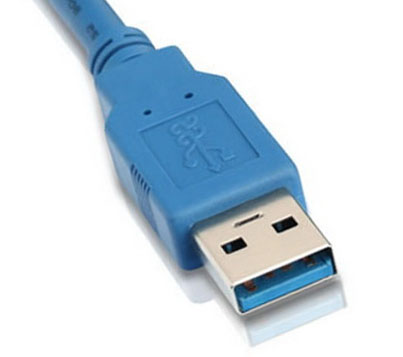
Unfortunately there are sales men/women out there that are just not educated on their products and go by what their friends or coworkers have maybe told them. USB 3.0 is good to have but it doesn't make your internet speed faster, it helps with faster data transfer speed when using USB 3.0 hardware such as a flash drive or external hard drive with native USB 3.0. To obtain the fastest speed possible with USB 3.0, you will need to have all devices involved to have native USB 3.0 technology. By native (for those who might be confused) I mean the device had to be manufactured with USB 3.0 technology which is usually known for the blue plastic piece inside of the USB connector whereas with USB 2.0 it was common to see a white or black plastic piece inside of the USB connector.

Here are examples of what I'm referring to:

USB 3.0 -
cable-A.jpg


USB 2.0 -
images


I hope this helps clear up and maybe assist you in your next hardware purchase. It is safe to ask for assistance or even just google the technology you're thinking of purchasing and educate yourself before purchasing. Making educated purchases are what I recommend. Don't waste your money! :biggrin:
 
Whoops. Not sure why I wrote PCI. Meant VGA. Derp.

So yeah, originally I was using a VGA cable with a DVI to VGA adapter to connect my PC to my LCD TV. Everything looks nice but I thought I could get better quality with an HDMI cable. I switched over to an HDMI cable with a DVI to HDMI adapter. I'm not losing quality through the adapter, am I? If it'll make a difference, I'll buy the mini-HDMI to HDMI cable. As you probably know, the standard HDMI cable won't fit into a graphics card HDMI slot.
 
Whoops. Not sure why I wrote PCI. Meant VGA. Derp.

So yeah, originally I was using a VGA cable with a DVI to VGA adapter to connect my PC to my LCD TV. Everything looks nice but I thought I could get better quality with an HDMI cable. I switched over to an HDMI cable with a DVI to HDMI adapter. I'm not losing quality through the adapter, am I? If it'll make a difference, I'll buy the mini-HDMI to HDMI cable. As you probably know, the standard HDMI cable won't fit into a graphics card HDMI slot.

You're not getting the full picture quality when you're using a converter like that. HDMI to HDMI is what you want. If your video card supports HDMI, it should have an HDMI port next to your DVI port and should use the correct cable. Such as this:


hdmi-hdmi-cable.jpg
 
It does indeed have an HDMI port, but like I said it's for the mini-HDMI. Mini-HDMI to HDMI will give the same quality as HDMI to HDMI, yes?
 
It does indeed have an HDMI port, but like I said it's for the mini-HDMI. Mini-HDMI to HDMI will give the same quality as HDMI to HDMI, yes?

Here is a citation from the wiki page explaining that the mini HDMI connector is under the Type C category. This means it operates on version 1.3 which is not quite version 1.4. I went ahead and made the text that directly referred to your question bold for ease of reading. However the rest of the text I copied is also good to read. To answer your question directly, there are limitations based on the version of HDMI that you are using. The mini connector is version 1.3 which is not as fast as version 1.4 but there are minor differences. The newer version is allowing better resolution which is shown in the description of version 1.4 on the wiki page. Here is a quote from the wiki page on version 1.4: "HDMI 1.4 increases the maximum resolution to 4K ? 2K, i.e. 3840 ? 2160p (Quad HD) at 24 Hz/25 Hz/30 Hz or 4096 ? 2160p at 24 Hz (which is a resolution used with digital theaters)" There is a lot more knowledge to gain on this technology so I would sit down and read it all to better understand what is available to you and you can make an educated purchase to get your desired picture quality.

http://en.wikipedia.org/wiki/HDMI said:
Connectors
An HDMI type A receptacle connector on a device with the words HDMI IN below it.
HDMI type A receptacle connector
A close up image of the end of an HDMI type A plug connector.
HDMI type A plug connector

There are five HDMI connector types. Type A/B are defined in the HDMI 1.0 specification, type C is defined in the HDMI 1.3 specification, and type D/E are defined in the HDMI 1.4 specification.

Type A
Nineteen pins, with bandwidth to support all SDTV, EDTV and HDTV modes.[4] The plug (male) connector outside dimensions are 13.9 mm ? 4.45 mm and the receptacle (female) connector inside dimensions are 14 mm ? 4.55 mm.[54] Type A is electrically compatible with single-link DVI-D.[55]

Type B
This connector (21.2 mm ? 4.45 mm) has 29 pins and can carry six differential pairs instead of three, for use with very high-resolution future displays such as WQUXGA (3,840?2,400).[55][56] Type B is electrically compatible with dual-link DVI-D, but has not yet been used in any products.[55][57] However, the use of the extra three differential pairs is reserved as of 1.3 specification.

Type C
A Mini connector defined in the HDMI 1.3 specification, it is intended for portable devices.[1][58][59] It is smaller than the type A plug connector (10.42 mm ? 2.42 mm) but has the same 19-pin configuration.[58][60] The differences are that all positive signals of the differential pairs are swapped with their corresponding shield, the DDC/CEC Ground is assigned to pin 13 instead of pin 17, the CEC is assigned to pin 14 instead of pin 13, and the reserved pin is 17 instead of pin 14.[61] The type C Mini connector can be connected to a type A connector using a type A-to-type C cable.[58][59]


Type D
A Micro connector defined in the HDMI 1.4 specification[59][62] keeps the standard 19 pins of types A and C but shrinks the connector size to something resembling a micro-USB connector.[63] The type D connector is 2.8 mm ? 6.4 mm, whereas the type C connector is 2.42 mm ? 10.42 mm.[64] For comparison, a micro-USB connector is 1.8 mm ? 6.85 mm and a USB Type A connector is 4.5 mm ? 11.5 mm. The pin assignment is different from Type A or C.

Type E
Automotive Connection System defined in HDMI 1.4 specification.[65] The connector has a locking tab to keep the cable from vibrating loose, and a shell to help prevent moisture and dirt. A relay connector is available for connecting standard consumer cables to the automotive type.[66]

Version 1.3

HDMI 1.3 was released June 22, 2006 and increased the single-link bandwidth to 340 MHz (10.2 Gbit/s).[2][43][129] It optionally supports deep color, with 30-bit, 36-bit and 48-bit xvYCC, sRGB, or YCbCr, compared to 24-bit sRGB or YCbCr in previous HDMI versions. It also optionally supports output of Dolby TrueHD and DTS-HD Master Audio streams for external decoding by AV receivers.[130] It incorporates automatic audio syncing (audio video sync) capability.[43] It defined cable Categories 1 and 2, with Category 1 cable being tested up to 74.25 MHz and Category 2 being tested up to 340 MHz.[68] It also added the new type C Mini connector for portable devices.[58][131]

HDMI 1.3a was released on November 10, 2006 and had Cable and Sink modifications for type C, source termination recommendations, and removed undershoot and maximum rise/fall time limits.[2] It also changed CEC capacitance limits, clarified sRGB video quantization range, and CEC commands for timer control were brought back in an altered form, with audio control commands added.[2] It also added support for optionally streaming SACD in its bitstream DST format rather than uncompressed raw DSD like from HDMI 1.2 onwards.[2]

HDMI 1.3b, 1.3b1 and 1.3c were released on March 26, 2007, November 9, 2007, and August 25, 2008 respectively. They do not introduce differences on HDMI features, functions, or performance,[132] but only describe testing for products based on the HDMI 1.3a specification regarding HDMI compliance (1.3b [121][133][134]), the HDMI type C Mini connector (1.3b1 [121][133][134]) and active HDMI cables (1.3c [75][135]).[132]


Source: http://en.wikipedia.org/wiki/HDMI
 
Alright, so from all that I'm understanding that 1.3 is just slightly inferior to 1.4. Apparently a mini-HDMI to HDMI adapter will support 1080p. I'm going out on a limb here, but would the 1.3 to 1.4 adapter be just as good as a graphics card that had a 1.4 port?
 
Alright, so from all that I'm understanding that 1.3 is just slightly inferior to 1.4. Apparently a mini-HDMI to HDMI adapter will support 1080p. I'm going out on a limb here, but would the 1.3 to 1.4 adapter be just as good as a graphics card that had a 1.4 port?

The best way to remember the answer to these type of questions is to think of where the bottleneck might be. It's like a two lane highway opening up to a 5 lane freeway. This example isn't supposed to be a direct scaling affect with our current situation but to grab at the ease of understanding these situations. This is also similar to some people believing they can use USB 2.0 external devices and connect them to a USB 3.0 port on a computer and expect the USB 3.0 transfer speed. Both ends need to be USB 3.0 to get the maximum potential based on existing hardware. Does that make a little more sense? My examples along with my answer to your question are basically a general answer to all of these scenarios.

You can use the adapter you're refering to but don't expect the maximum potential outside of the physical hardware you own. This includes your TV/monitor and video card.


Edit - I just thought of something else. Make sure you understand all of the details of what your TV/monitor and video card are even capable of. I want to make sure you're not expecting 1080p quality from a TV/monitor that can only display up to something like 720p. I don't know what your hardware is capable of, I just want to make sure I give a solid example. The cable will deliver the best quality signal it is capable of but the devices responsible for delivering or displaying the picture are the bottlenecks if your cable is superior in terms of delivering capability.
 
Last edited:
Back
Top