- Joined
- May 21, 2014
- Messages
- 2,467
How to apply a custom HUD in Team Fortress 2
One of the great functionalities of Team Fortress 2 is it customization abilities, and probably the most significant of those is the ability to change your HUD (The UI you see when in the menus/game).
For most players, the default HUD is suitable, as it shows what you need and is familiar, as it?s what you are used to, back to the first time you booted up the game. Occasionally, though, you might see a screenshot or video of someone playing, and it looks very different?but also very nice. How can you get that?
Well, it?s pretty easy actually. You don?t need to learn two programming languages and spend hours digging though and modifying code to achieve your desired results (though if you wish to make your own HUD, it might). All it takes is replacing some files in your game folder.
So, the first thing you?ll want to do is head over to huds.tf. There are other places you can get HUDs, but this site is easy to navigate and shows up-front the most important thing, what the HUD looks like. They also are convenient as they tell you which HUDs are outdated (e.g., after the Tough Break Update last week, HUDs needed to be updated again).
Now, the reason people tend to make HUDs is because for some players, the default tends to use up a lot of space on your screen. Each number has a backboard behind, for example. So, a lot of custom HUDs focus on simplicity/minimalism. This is the basis behind the one I use, Noto. Example screenshot below. (You are not required to use this hud)
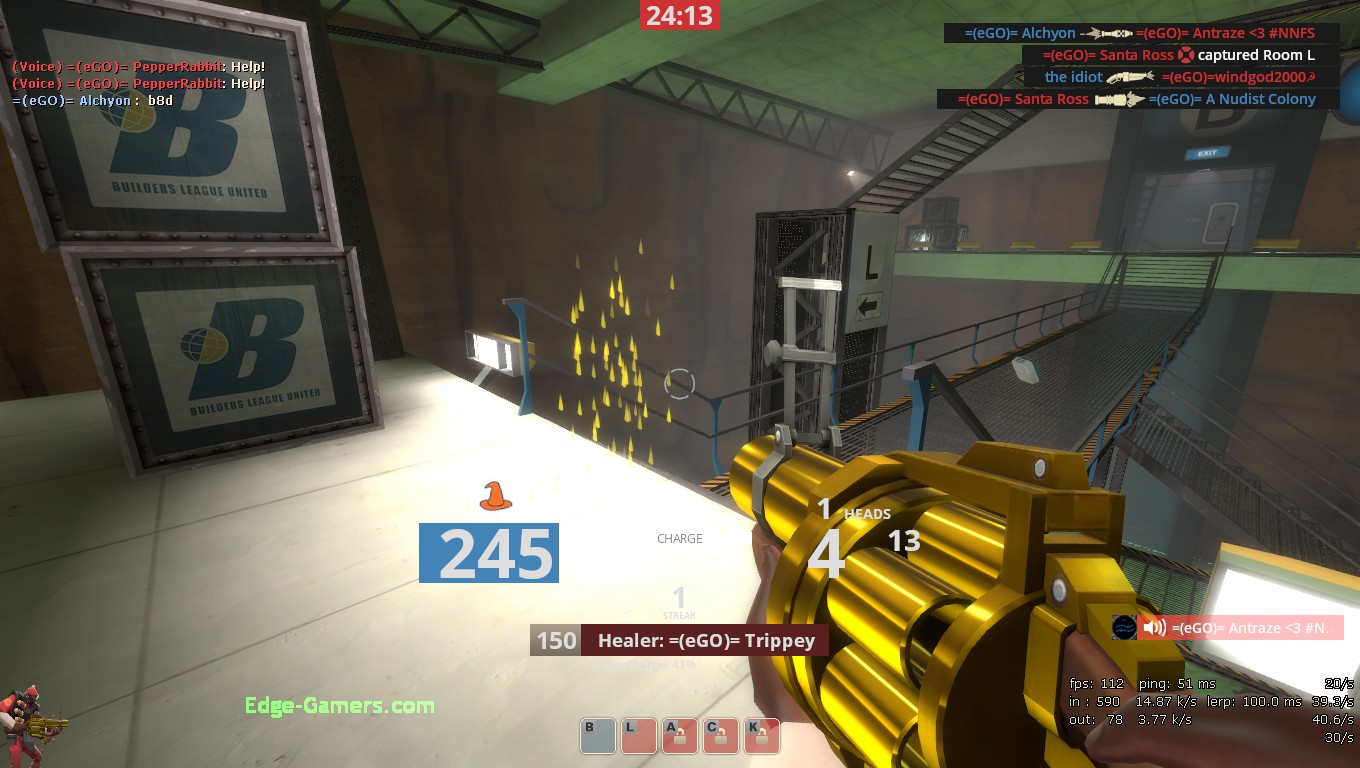
I also like this one as it has a customizable scoreboard (it can be 6v6. 9v9, 12v12 etc).
Once you are in the directory in huds.tf, you can search through the HUDs and take a look at all of them, and figure out which one you like. When you click on the download button, it will bring you to its github page. Before you do anything here, check the time of the last update. For example when I am looking at the budhud github page, it says Tough Break Update (7 days ago), which means it was updated since the major update last week.

So once you have the HUD you like and confirm that it is duly-updated, you will download the ZIP file. You can place it on your desktop and extract it there, it should only be about 3 or 4 folders, but usually a ?master? folder that has all of them in it. You will then place that folder in your custom folder in team fortress\tf.
\Steam\steamapps\common\team fortress 2\tf\custom\?master folder or whatever?
Double check the github, as it usually has instructions on how to install the HUD and if there is anything specific that needs to be done. It will also let you know if there is any modifiable stuff and how to do it (some HUDs have more than others). That?s generally all you need to do. If you have TF open, restart, and if all goes well, you?ll have a brand new shiny UI. You may think it?s superficial only, but you never know how it could affect your play!