- Joined
- Jun 5, 2019
- Messages
- 2,574
Hello, beautiful people. Today's devlog is about more optimizations to my laziness, so let's get right into the meat and potatoes.
One day, I started taking noticing of Steam URI's. Not the typical links like https://steamcommunity.com/id/artimus/ but links like this: steam://connect/bhop.csgo.edgegamers.cc. If you put that link in your browser, Steam will automatically launch CS:GO and navigate you to the BHOP server. But why? Shouldn't it take you to a web page or say it's an invalid link? Isn't this a security risk?
Good questions, let's approach them one at a time.
So we know two things about protocol handlers:
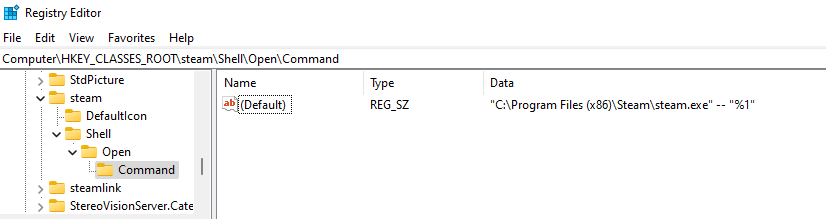
This is confusing, so let's break it down into chunks:
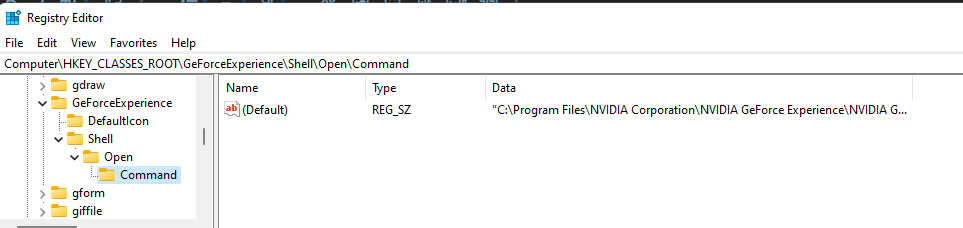
Interesting. If you want, you can open Geforce Experience from your browser via
Now, let's figure out how to do this programmatically.
We need access to Windows Registry and luckily Python has a standard package for doing just that called
Open up an elevated terminal, and start Python and let's import
Let's look at the documentation for
Now, let's take a moment to recognize something.
So theoretically, creating the outline for the handler is a simple one liner.
And to verify it's in our Registry (might want to press F5 to refresh the registry)

Perfect! Well, almost perfect.
The handler outline has been made, but it does nothing right now. So let's see if we can edit the key and add what we want.
Looking back at the docs, let's find the
Let's open the key.
It's opened, now let's write to the key.
This sets a parameter called

Now, we close the key.
So, we need the protocol handler to open something. Let's have it open up the Minecraft Launcher.
My installation is at
And that's done! Now, we can type
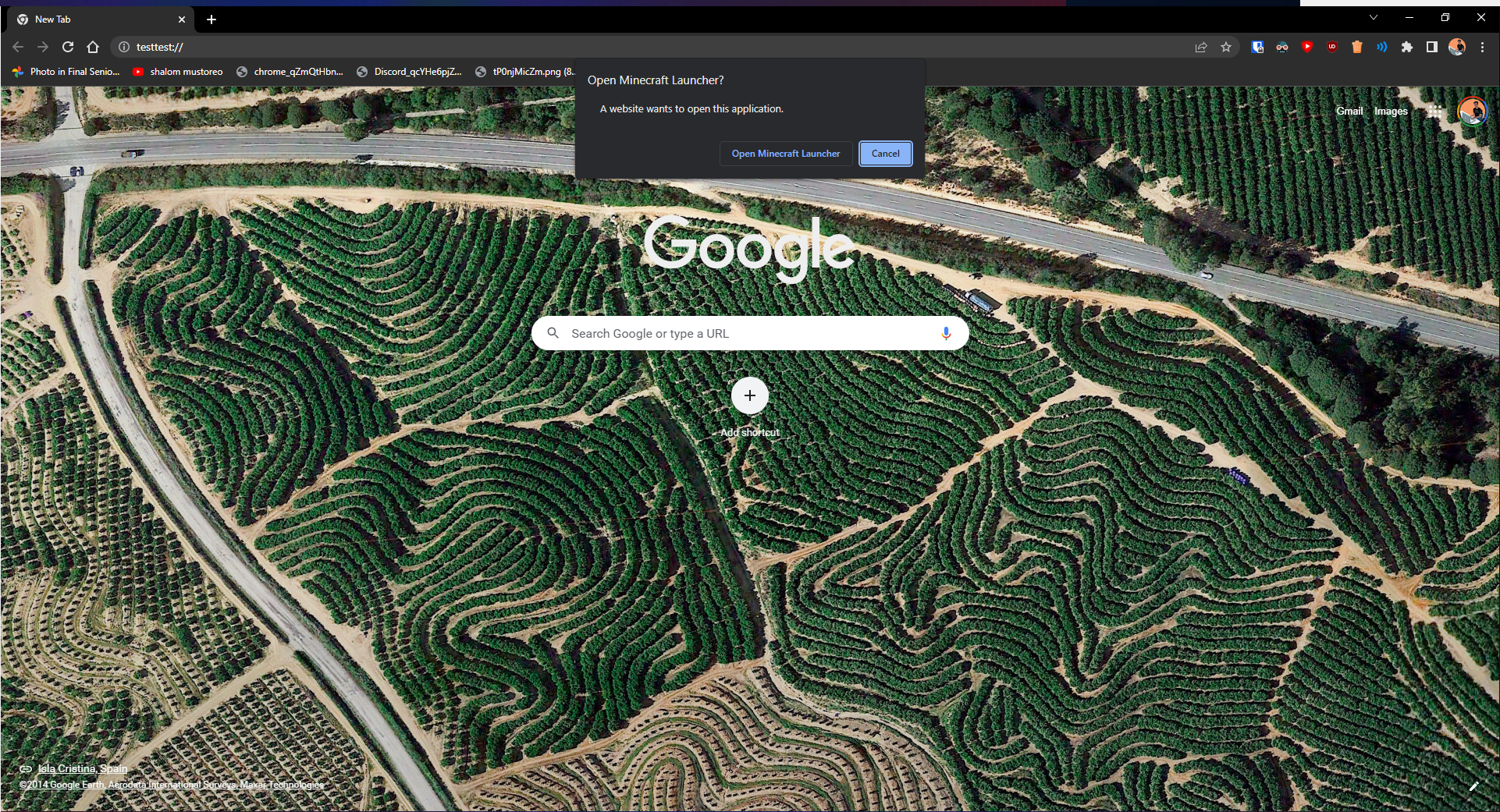
And if you want a more direct way, you can do Win+R, type
I'm a bit strapped for time, but as always, you can check out the project on my Github here.
Later, nerds!
One day, I started taking noticing of Steam URI's. Not the typical links like https://steamcommunity.com/id/artimus/ but links like this: steam://connect/bhop.csgo.edgegamers.cc. If you put that link in your browser, Steam will automatically launch CS:GO and navigate you to the BHOP server. But why? Shouldn't it take you to a web page or say it's an invalid link? Isn't this a security risk?
Good questions, let's approach them one at a time.
- Why? Shouldn't it take you to a web page or say it's an invalid link?
- It's a bit complicated, but my take on it is that during the early days of the internet, there were better tools outside of the browser that people would use to do stuff like FTP (File Transfer Protocol), IRC (Internet Relay Chat), mailto (Mail To Someone), etc. So, the browser, decided to take this and run with it with Protocol Handlers to automatically open files/programs with the same context as what it has received.
- Isn't this a security risk?
- It could be, but a little more forethought came through. On Windows, to register protocol handlers, you'd have to write to the registry. To do that, you need administrator privileges. The only way to introduce a security concern is if the application is malware, or a trusted piece of software got hijacked.
So we know two things about protocol handlers:
- They require administrative access to the Registry.
- Once setup, they can be accessed via hyperlinks.
steam. Normally, protocol handlers are under HKEY_CLASSES_ROOT, so let's search.This is confusing, so let's break it down into chunks:
- Registries have keys and subkeys. The structure looks to be that
steamis our main key and it has subkeys ofDefaultIconandShell.Shellalso has a subkey ofOpenwhich has a subkey ofCommand. - In that
Commandsubkey, we have a string value of a typeREG_SZ(bonus points if you google that and figure out what that means` and the string leading to thesteamexecutable on our C drive.
steam:// works via having these specific subkeys and runs the executable through the shell (at non-escalated privileges). But, let's make sure we have this right as it could be different for every handler.Interesting. If you want, you can open Geforce Experience from your browser via
GeForceExperience://.Now, let's figure out how to do this programmatically.
We need access to Windows Registry and luckily Python has a standard package for doing just that called
winreg.Open up an elevated terminal, and start Python and let's import
winreg
Python:
PS C:\Users\mrsam> python
Python 3.10.5 (tags/v3.10.5:f377153, Jun  6 2022, 16:14:13) [MSC v.1929 64 bit (AMD64)] on win32
Type "help", "copyright", "credits" or "license" for more information.
>>> import winreg
Let's look at the documentation for
winreg, specifically, creating keys.
Python:
winreg.CreateKey(key, sub_key)

   Creates or opens the specified key, returning a handle object.

   key is an already open key, or one of the predefined HKEY_* constants.

   sub_key is a string that names the key this method opens or creates.

   If key is one of the predefined keys, sub_key may be None. In that case, the handle returned is the same key handle passed in to the function.

   If the key already exists, this function opens the existing key.

   The return value is the handle of the opened key. If the function fails, an OSError exception is raised.

   Raises an auditing event winreg.CreateKey with arguments key, sub_key, access.

   Raises an auditing event winreg.OpenKey/result with argument key.
Now, let's take a moment to recognize something.
winreg.CreateKey takes a key and sub_key argument. key is either a key we've searched for or a HKEY constant, like HKEY_CLASSES_ROOT. sub_key is everything else afterward.So theoretically, creating the outline for the handler is a simple one liner.
Python:
>>> winreg.CreateKey(winreg.HKEY_CLASSES_ROOT, "testtest\\shell\\open\\command")
<PyHKEY object at 0x000002604F67D8B0>
And to verify it's in our Registry (might want to press F5 to refresh the registry)
Perfect! Well, almost perfect.
The handler outline has been made, but it does nothing right now. So let's see if we can edit the key and add what we want.
Looking back at the docs, let's find the
OpenKey function.
Python:
winreg.OpenKey(key, sub_key, reserved=0, access=KEY_READ)
winreg.OpenKeyEx(key, sub_key, reserved=0, access=KEY_READ)
    Opens the specified key, returning a handle object.

    key is an already open key, or one of the predefined HKEY_* constants.

    sub_key is a string that identifies the sub_key to open.

    reserved is a reserved integer, and must be zero. The default is zero.

    access is an integer that specifies an access mask that describes the desired security access for the key. Default is KEY_READ. See Access Rights for other allowed values.

    The result is a new handle to the specified key.
OpenKey (and OpenKeyEx) has a couple of new parameters: reserved and access. reserved is not needed, as it has to be zero anyway. access is something different. We want to write and edit this key, so winreg.KEY_READ isn't going to help us here. We'll use winreg.KEY_WRITE to tell the Registry we plan on writing to this key.Let's open the key.
Python:
>>> key = winreg.OpenKey(winreg.HKEY_CLASSES_ROOT, "testtest", 0, winreg.KEY_WRITE)It's opened, now let's write to the key.
Python:
winreg.SetValueEx(key, value_name, reserved, type, value)
    Stores data in the value field of an open registry key.

    key is an already open key, or one of the predefined HKEY_* constants.

    value_name is a string that names the subkey with which the value is associated.

    reserved can be anything – zero is always passed to the API.

    type is an integer that specifies the type of the data. See Value Types for the available types.

    value is a string that specifies the new value.

    This method can also set additional value and type information for the specified key. The key identified by the key parameter must have been opened with KEY_SET_VALUE access.

    To open the key, use the CreateKey() or OpenKey() methods.
Python:
>>> winreg.SetValueEx(key, "URL Protocol", 0, winreg.REG_SZ, "")This sets a parameter called
URL Protocol and nothing else, this will tell Windows that we are registering a URL Protocol Handler.Now, we close the key.
Python:
>>> winreg.CloseKey(key)So, we need the protocol handler to open something. Let's have it open up the Minecraft Launcher.
My installation is at
C:\Program Files (x86)\Minecraft Launcher\MinecraftLauncher.exe. So let's set it up!
Python:
>>> new_key = winreg.OpenKey(winreg.HKEY_CLASSES_ROOT, "testtest\\shell\\open\\command", 0, winreg.KEY_WRITE)
>>> winreg.SetValueEx(new_key, "", 0, winreg.REG_SZ, '"C:\\Program Files (x86)\\Minecraft Launcher\\MinecraftLauncher.exe"' + ' "%1"')
>>> winreg.CloseKey(new_key)
And that's done! Now, we can type
testtest:// in our browser and we should be able to load the launcher!And if you want a more direct way, you can do Win+R, type
testtest:// in the Run box, and it'll automatically run the launcher for ya!I'm a bit strapped for time, but as always, you can check out the project on my Github here.
Later, nerds!