Malware Removal - Viruses/Spyware/Adware

Or you can use mac like me?
no virus :D (it will sure come a day)....

the only way to get 2-3 malware/hacked is if you give a (bad) program you pc code... ;)
and who is so stupid to do that?
 
Or you can use mac like me?
no virus :D (it will sure come a day)....

the only way to get 2-3 malware/hacked is if you give a (bad) program you pc code... ;)
and who is so stupid to do that?

mac and linux aren't too much of a target yet but the other reason is that to do real damage on a unix machine you need root access which is not likley going to happen with a virus or piece of spyware, actually in most cases on a linux machine software is running with lower privileges than the user tat started the application.

also permissions by default scripts and binaries aren't executable. unlike windows where anything with a *.bat or *.exe will run.
 
Combofix saved me a few weeks ago. Use it ONLY when you have a serious infection, though.
 
OMG I <3 this sticky! I just did this... MalWareBytes got rid of 54(Trojans and infected registry keys).. thats right 54! infections! and SuperAntiSpyware got rid of 49 adwares and a trojan! Oh yeah.. remind me to have my mother create a new email account... soo many of those came from there (she literally gets 100-300 spams a day)
 
Removing Fake Anti-Virus/Spyware, the quick way!

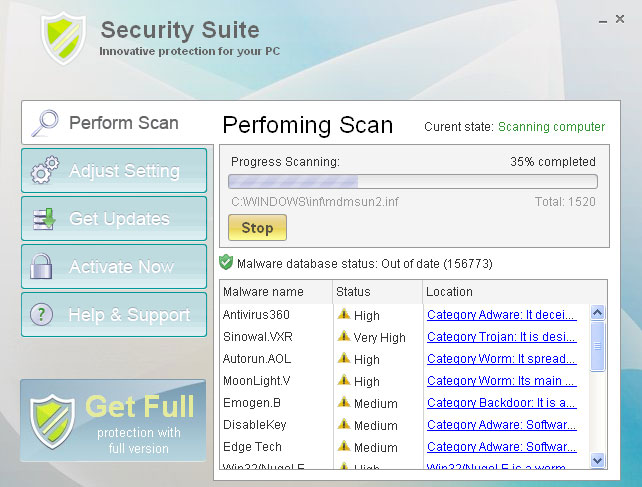
Have you ever booted your computer only to find something like this block your internet, antivirus applications, or worse STEAM??

SecuritySuite.jpg

Well I have a quick solution. Rather than booting into safe mode and installing some special anti-malware program onto a flash drive like other removal guides will have you believe, I offer a quicker manual solution.

  1. You just discovered a fake anti-virus (or other rouge application) is preventing you from performing certain tasks. Reboot your computer, but in normal mode, not safe.
  2. The second you boot to your desktop, press control+alt+delete and open your task manager.
  3. Quickly press the processes tab.
  4. Now identify the process that launches the rouge app. Its usually something obscure like ejoilljhlsdaf.exe for an example. If the applications creator is really dumb the application name will be listed next to it.
  5. Right click it and click "Open File Location"
  6. End the applications process before it loads, if you fail to do this it may prevent this step and you have to try again.
  7. Finally, with the process ended and the coast clear, delete the application. Make sure to empty your recycle bin as well.


But Rukus! My web browser and steam overlay browser still don't work!

Simple solution, imaginary patron! Here is how to fix this according to browser.

  • Opera: Press F12 and uncheck "Enable Proxy Server"
  • Mozilla: Go to tools>options>advanced options and hit the "network" tab, go into connection settings and check the "no proxy" option.
  • Steam/Internet Explorer: You'll have to do this in IE for it to effect Steam, because Steam uses the same settings for its web browser you use for IE. Anyway, go into tools>internet options>connections tab. Click "LAN Settings". One in there uncheck "Use A Proxy"

There you go, you should now be Malware free!
 
Thanks!

My laptop is loaded with viruses from people using it while I was gone and using Limewire ETC..

I am going to download these and knock out these viruses

ALSO

Microsoft put out a Malware remover.. I think its called Microsoft Malicious Malware Remover. Just google it or go to microsoft.

Thanks again for this!
 
I would recommend VIPRE antvirus. http://www.vipreantivirus.com/


It is less stressful on your system than Norton/Mcaffee, and more effective than Kaspersky. They do offer a free trial.

I will admit the pricing structure is a little high, however 100 dollars for a lifetime license, (Yes I do mean LIFETIME), isn't bad.
After all, if you think about it, you pay roughly 40-60 dollars per year, every year, on licensing fees. So this would pay for itself in less than 2 years. Also, if a virus gets past VIPRE, you can contact VIPRE's tech support team, whom have a guarantee to either get it removed, or replace your system, for free.
 
I used vipre endpoint in an enterprise environment and it conflicted with many of our applications. We started using Sophos and it improved immensely. Not sure how the home edition of vipre is.
 
Last edited:
The home version is alot smoother from what I've noticed. However, it can be a little too sensitive. Still working on that. Just needs a few tweaks.
 
I've updated the software list, and fixed a few grammar issues. I hope this post continues to help the community! My sincerest thanks for the phenomenal responses I've received over the years.
 
I fix computers for a living and I'd say the OP list is excellent. The only thing I'd like to suggest adding to the list is RKILL. RKILL is privately written by Grinler from bleeping computer and it kills any malicious services or software that is running so you can perform your malware scans and catch some of the infections hiding as windows services. I'd suggest running RKILL after each reboot during your malware removal process.

This is how I remove malware:
*Disclaimer - run RKILL after each reboot. You will need to reboot if malware is found and being removed.
1. Boot into safe mode with networking (so you can update any malware definitions).
2. Run RKILL
3. Run updated TDSSKILLER (click on the change parameters option and enable the detect TDLFS FILE SYSTEM box).
4. Run Malwarebytes full scan on all drives or partitions with files on them.

After I perform those necessary and efficient steps I'll go one step further and do the following:
1. msconfig general tab click normal startup and apply. Immediately after click diagnostic mode and hit apply.
2. Reboot computer and let it reach the desktop.
3. Run RKILL
4. Run COMBOFIX

The reason I go into diagnostic mode for combofix is sUBs (the author of combofix) restricts what combofix will do if you have live scanners like AVG or Microsoft Security Essentials running. This could also cause harm to your computer if these programs have a conflict. Running in diagnostic mode (for those of you that don't know) makes the OS run on the absolute bare essentials to perform basic functions. Almost all of the services are turned off and all startup items are turned off. This means windows is not using nearly as many files and are free to be accessed with zero conflicts.

After the previous two sections are performed I go back into msconfig and resume with a selective startup.
1. All startup items are disabled and under services I hide microsoft services and disable the rest.
2. Reboot the computer.
3. Run Microsoft Security Essentials after update. FULL SCAN!

All of the above mentioned steps has proven to be very effective and all that's left is repairing the OS from whatever services are broken or registry keys are missing due to nasty infections.

Note to Bulletsponge: Your guide is excellent and thank you for sharing it with everyone. I only posted this information to be helpful and in no way am I attempting to overtake your suggestions or suggest that your methods are not the best way. This is how I do things day in and day out in a general sense. Again I hope this helps.

 
I'd like to point out to the OP that the system restore feature within Windows is not a useless feature as you said. If someone makes a change to their computer like new drivers or new software and creates a restore point right before they install, the user can go back in time to that restore point should whatever changes they made cause problems such as blue screens.

I support what you're saying with turning system restore off for the sake of making sure the infection they have doesn't get backed up and reinstalled after attempting to remove it. I just don't want users to think that the feature is useless because it isn't useless.
 

Latest posts

Back
Top